Choose your drives
Select the source that held your files and a separate drive for recovered copies. Scan the whole volume or narrow the search to a folder.

Search a drive or folder for deleted files, review what the scan finds, and save selected files to another drive. The recovery runs on your computer.
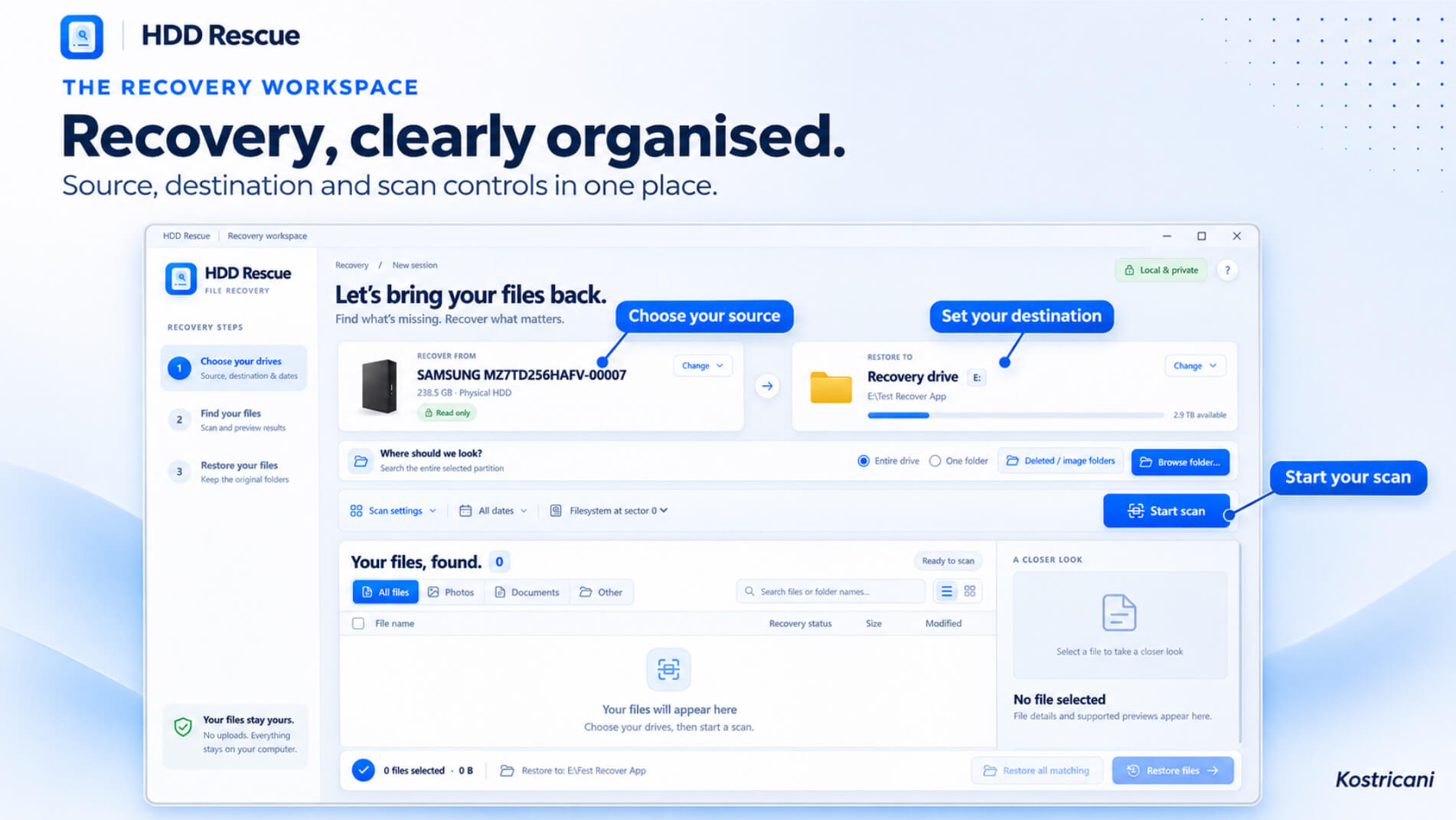
Select the source that held your files and a separate drive for recovered copies. Scan the whole volume or narrow the search to a folder.
Search by name, filter by type or file date, and preview supported files when available.
Copy the files you choose to your destination. HDD Rescue uses the original folder paths when that information survives.
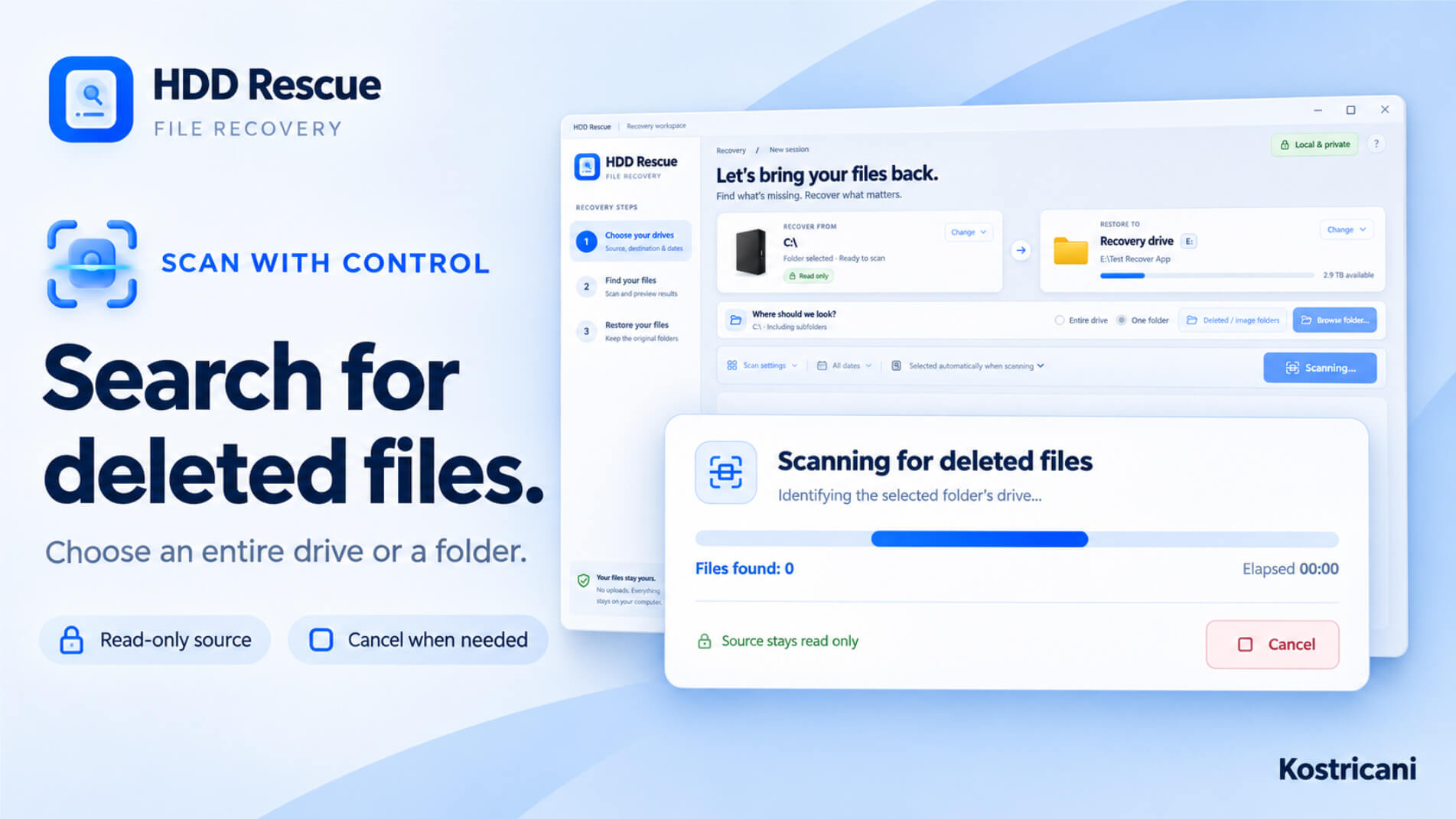
Choose a drive or folder and follow the scan as it runs. You can cancel the scan from the progress panel.
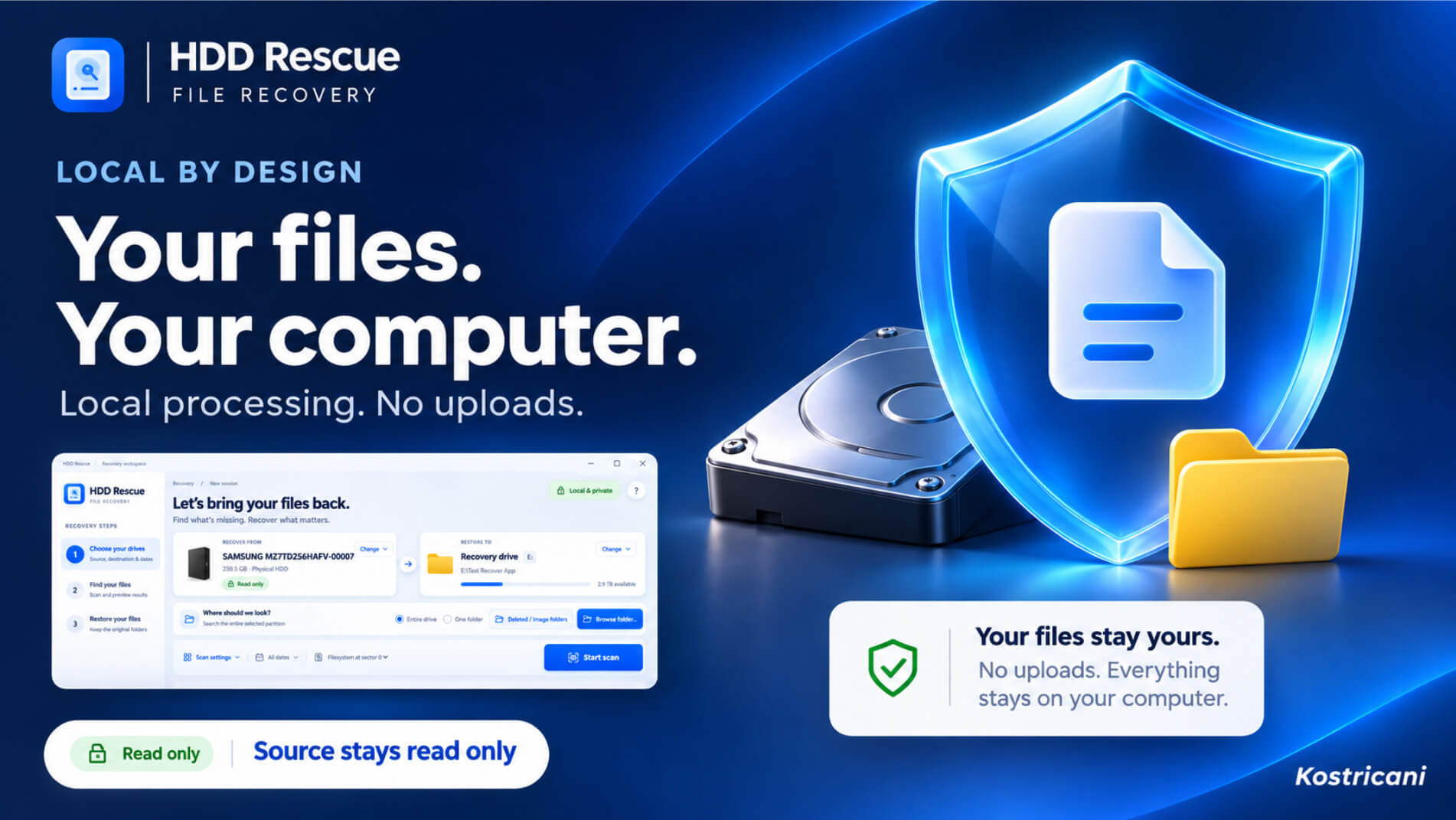
HDD Rescue opens the source drive for reading and writes recovered copies to the destination you select. Your files stay on your computer.
HDD Rescue can scan supported NTFS and FAT volumes, including FAT32 USB drives, and supported disk images.
Choose a different physical drive with enough free space for the files you want to restore.
Recovery depends on how much of the file data and folder information is still readable. Open the restored files or compare them with a backup to check their contents.
You can export a scan report to review the candidates found. The recovery report records the files copied to your destination.
Explore Kostricani Capture and Orbit alongside HDD Rescue.