WINDOWS APPS, BY KOSTRICANI

Capture clearly.
Launch easily.
Recover locally.

Three Windows apps.
Each built for a job you need to do.

Annotate screenshots with Capture, launch your programs with Orbit, and search for deleted files with HDD Rescue.

SCREEN CAPTURE DESKTOP LAUNCHER FILE RECOVERY
CAPTURE. ANNOTATE. SHARE.
Illustrative product preview
Kostricani Capture
Windows + browser

A screenshot.
A clearer explanation.

Capture the right part of your screen, mark what matters, and send a clear visual reply. Add arrows, text, message bubbles, and numbered steps without turning a quick screenshot into a long task.

Print Screen capture with an annotation toolbar
Copy an image, save a PNG, or share a viewing link
Opaque redaction and optional expiring uploads
Explore Capture For feedback, support & quick guides
Orbit Windows desktop launcher showing a searchable grid of program shortcuts above its floating desktop icon.
Orbit · Your apps, together
Orbit
Windows desktop

Your programs.
One place to launch.

Give your Windows shortcuts a home. Orbit brings your chosen programs together behind a desktop icon, with a dock-style view that keeps your workspace organized and your everyday apps close.

Add the program shortcuts you want to keep together
Hover to reveal your apps, then click to open one
A dock-style launcher for a cleaner desktop
Explore Orbit For the apps you open every day
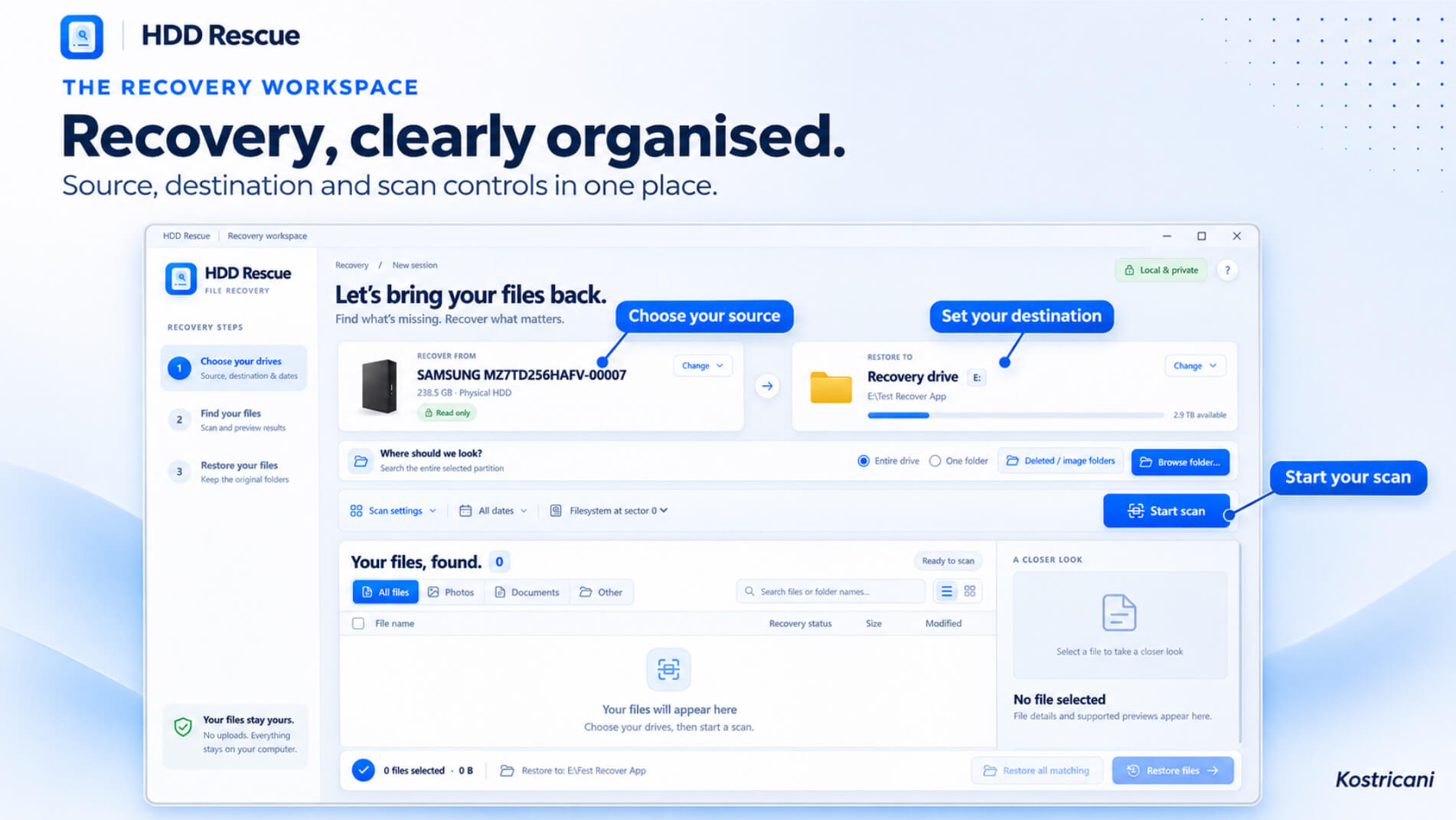
HDD Rescue workspace with source drive, destination and scan controls.
HDD Rescue
Windows x64

Deleted files.
A place to look.

Search for deleted files on a drive or in a folder. Review the results and save selected files to a separate drive, with recovery handled locally on your computer.

Scan a selected drive or folder
Filter results by name, type and file dates
Read-only source and local processing
Explore HDD Rescue For deleted file recovery

Explore each app’s features on its dedicated product page.

Made for everyday work

Less friction.
More getting things done.

Capture what’s on your screen, keep your programs within reach, and search for files you deleted.

Show instead of explaining

Use Capture to point out a design change, document an error, or share a quick visual guide with clients and teammates.

Give your shortcuts a home

Use Orbit to gather the programs you choose into a dedicated launcher, instead of looking through scattered desktop shortcuts.

Look for deleted files

Use HDD Rescue to scan a drive or folder, review the results, and save selected files to another drive.

Start with what you need

Which app is
right for you?

Choose Capture for screenshots, Orbit for your program shortcuts, or HDD Rescue to search for deleted files.

Good to know

A few quick answers.

Find the right tool for the way you work on Windows.

What does each app do?

Capture takes and annotates screenshots. Orbit organizes shortcuts to your Windows programs. HDD Rescue searches for deleted files and copies selected results to a separate drive.

Can I use the apps together?

Yes. Each app works on its own, so you can use the tools that suit your workflow.

Does Orbit install my Windows programs?

Orbit organizes shortcuts to programs you already have installed. You choose which shortcuts to add to the launcher. It does not replace the programs themselves.

Can I use Capture in a browser?

Yes. Capture has a browser editor as well as a Windows desktop companion. System-wide Print Screen capture requires the Windows companion to be running. The Capture product page explains both options.

Can HDD Rescue scan a USB drive?

Yes. HDD Rescue can scan supported volumes on USB drives, including FAT32. Choose a separate drive for the recovered files.

Make room for a better workflow.

Find the Windows tool that fits your task.

Explore all apps